Employee / Visitor
Ask the building a question or submit feedback in under 10 seconds, no app, no login required.
Submit Positive Feedback
Employee / Visitor · ~10 sec
Scan a QR code and rate your experience in seconds. No app download, no login, just scan and go.
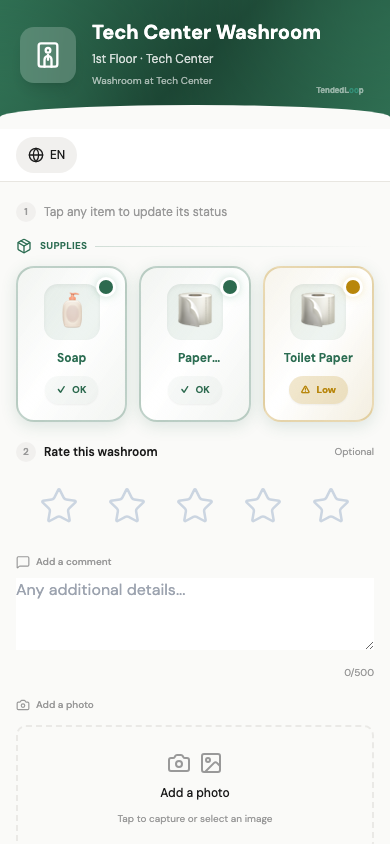
Scan, Rate, Submit
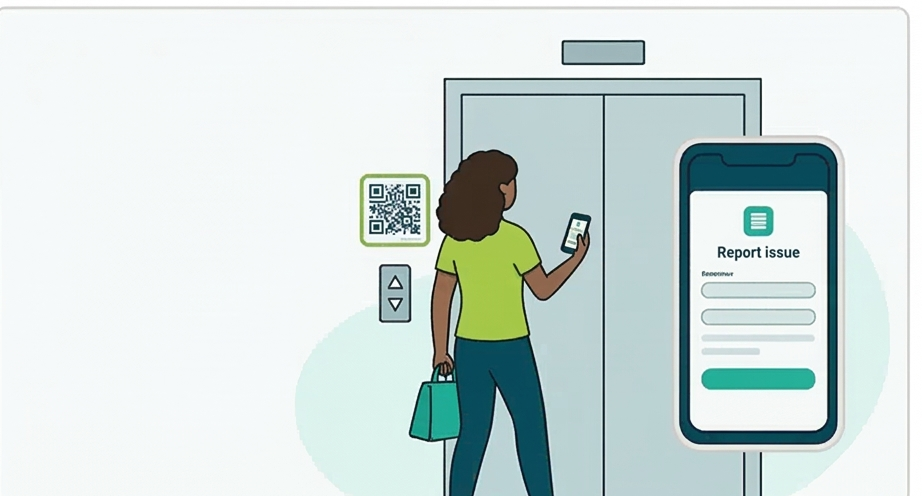
Find a TendedLoop QR sticker near any amenity, restroom, kitchen, lobby, or meeting room. Scan it with your phone camera, tap the stars to rate, and hit Submit. Your feedback is instantly routed to the right team. The whole process takes under 10 seconds.
Report an Issue
Employee / Visitor · ~30 sec
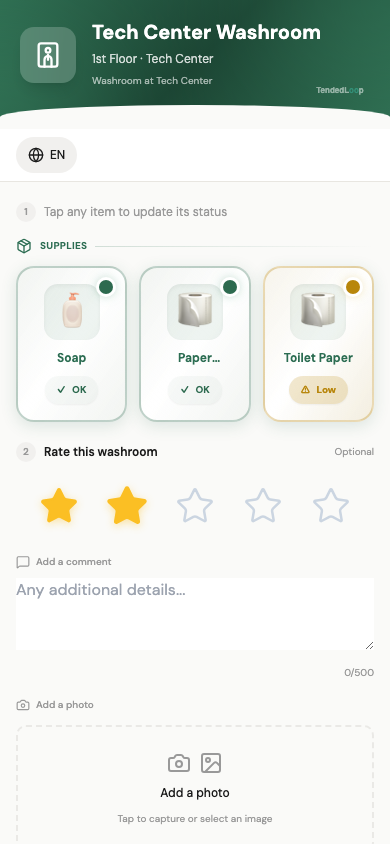
Something broken or missing? Report it with a low rating, pick the issue type, and optionally add a comment or photo.
Rate Low and Select Issues
Scan the QR code and give a 1 or 2-star rating. Issue categories appear automatically, tap the ones that apply (cleanliness, supplies, temperature). You can also add a comment or photo.
Issue Routed Automatically
Your report is submitted anonymously. A task is automatically created and assigned to the right technician based on the issue type and location. No follow-up needed from you.
Getting Started
Set up your facility in minutes with the guided setup wizard.
Set Up Your Facility
Getting Started · ~5 min
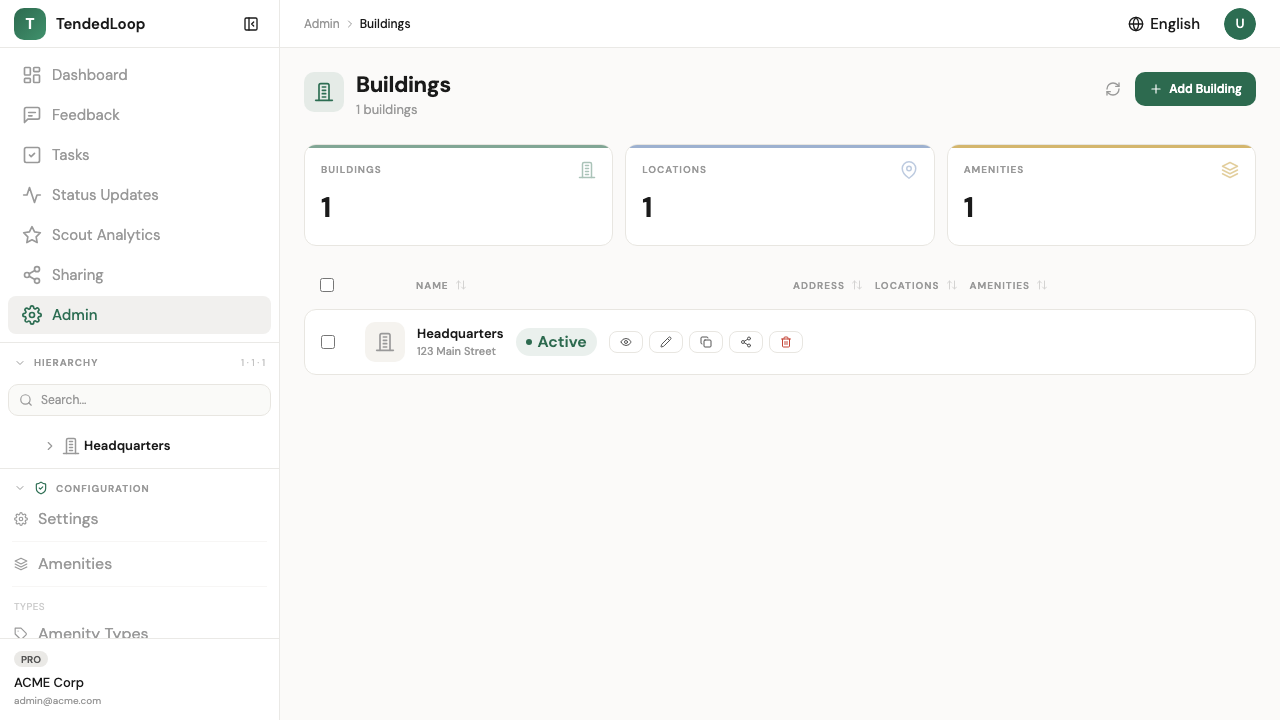
The setup wizard walks you through creating your first building, adding locations and amenities, and generating QR codes, all in under 5 minutes.
Sign Up and Configure
Create your free account and the setup wizard launches automatically. Choose your industry for tailored templates, name your building, define your location hierarchy (floors, wings, zones), and add amenities. QR codes are generated automatically.
Print QR Codes and Go
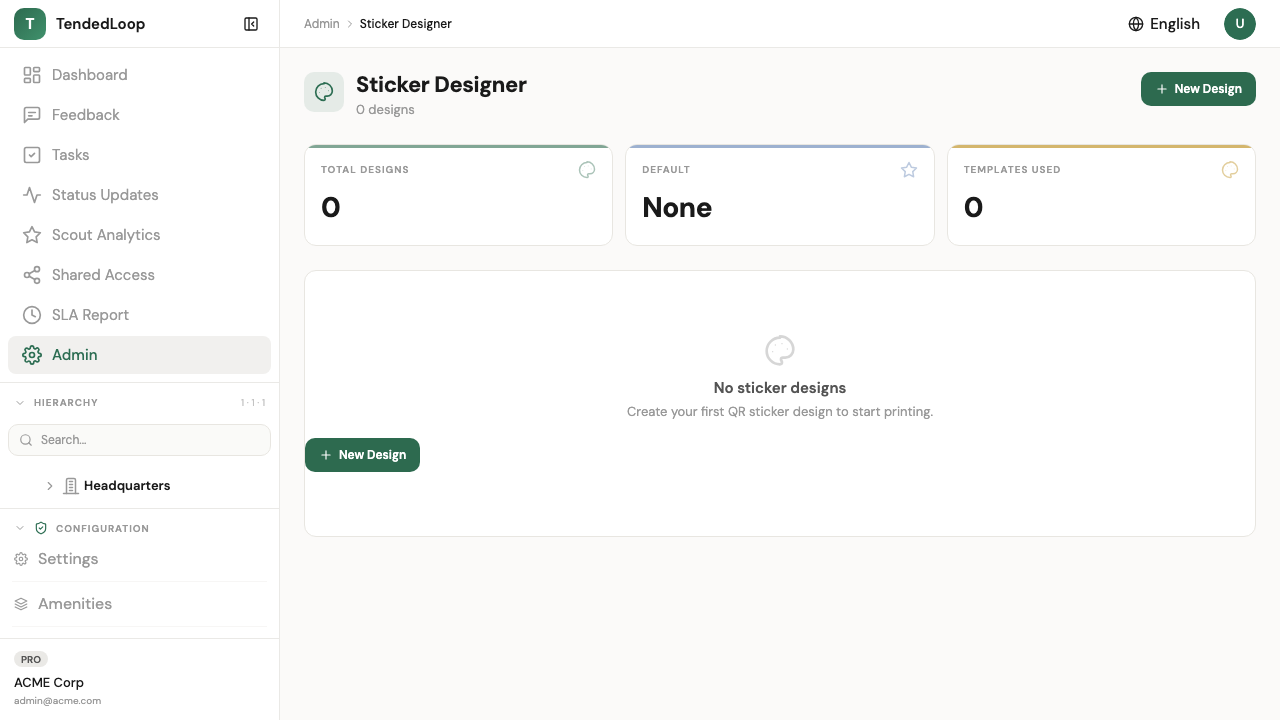
Download your QR stickers as a PDF, print them, and place them near each amenity. Feedback starts flowing into your dashboard immediately, no additional setup required.
Facility Manager
Real-time analytics, task management, and SLA monitoring.
Dashboard at a Glance
Facility Manager · ~1 min
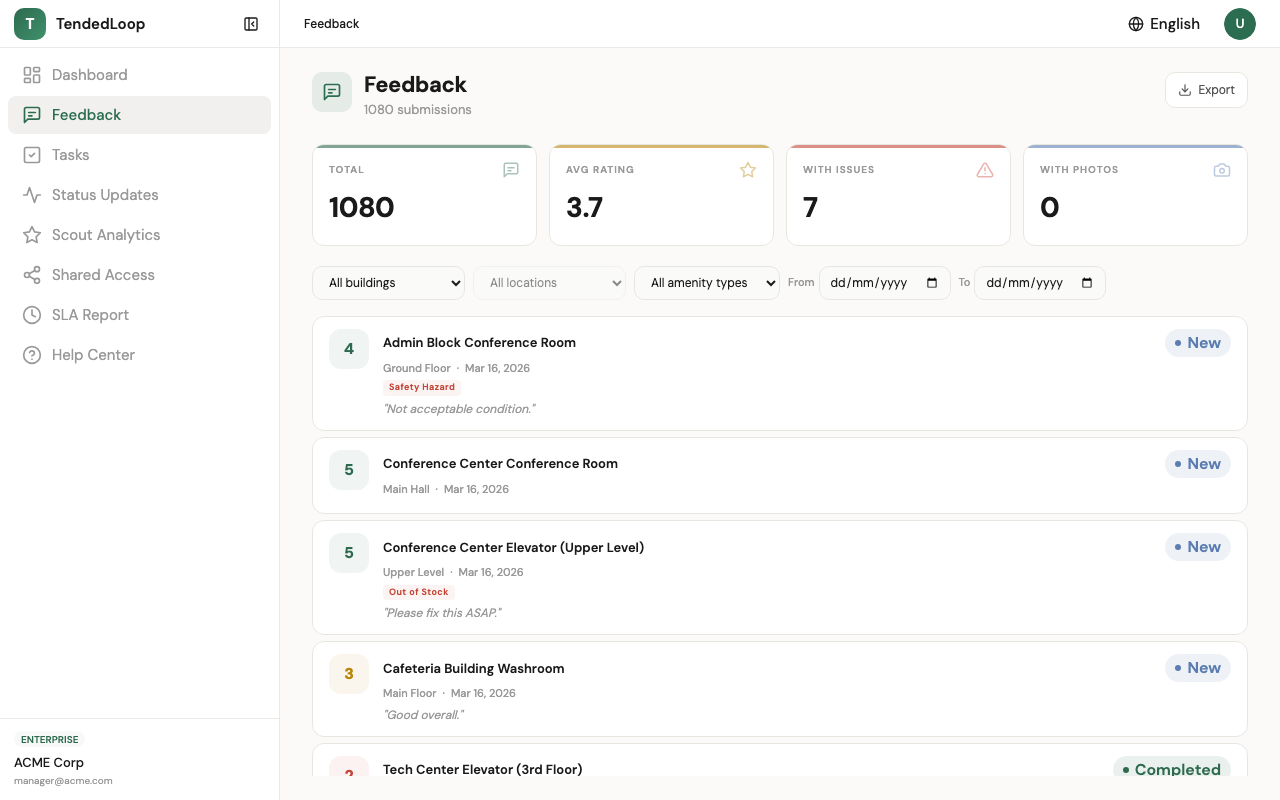
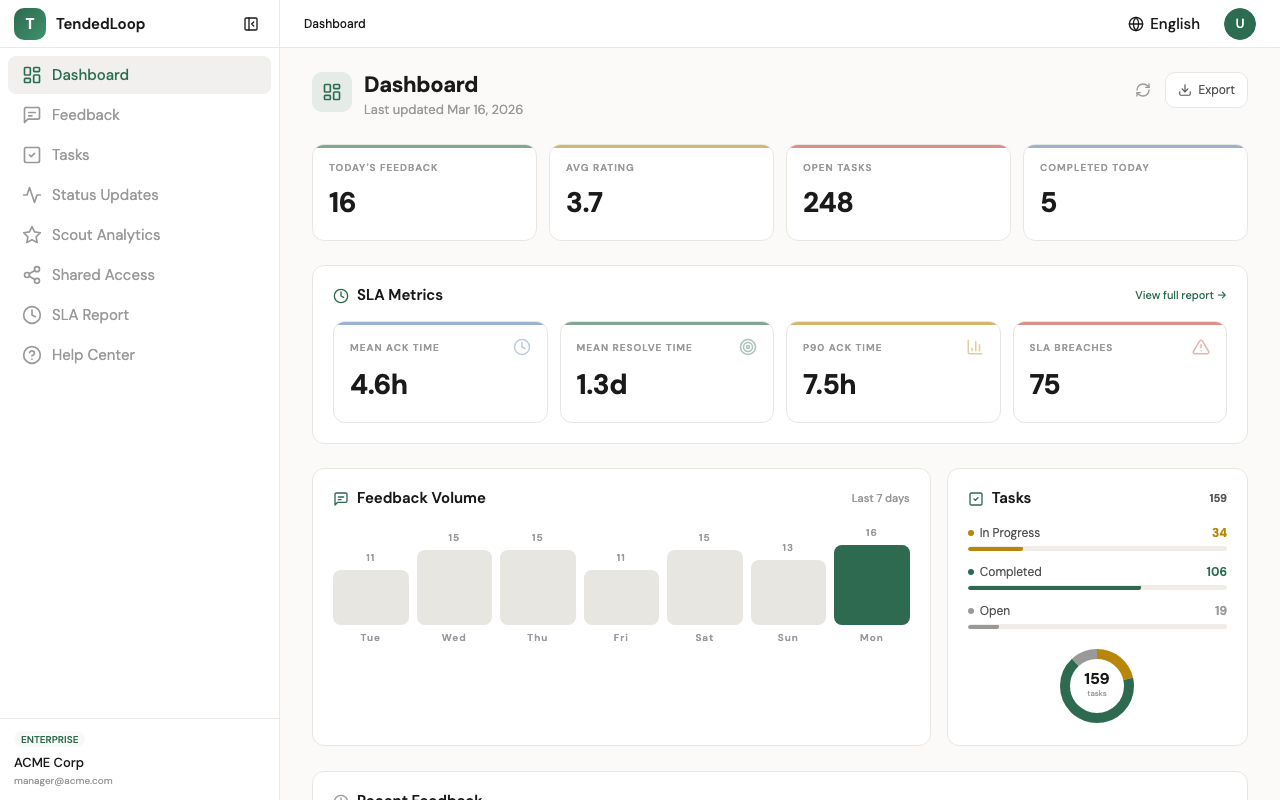
See your facility's pulse in real time, average ratings, feedback volume, open tasks, and SLA compliance all in one view.
KPI Cards
The dashboard opens with key performance indicators at the top, average rating, total feedback, open tasks, and SLA compliance. Each card shows the current value and trend compared to the previous period.
Feedback Stream
See recent feedback in real time. Filter by building, location, rating, or date range. Click any entry to see the full details including comments, photos, and the assigned task.
Managing Tasks
Facility Manager · ~2 min
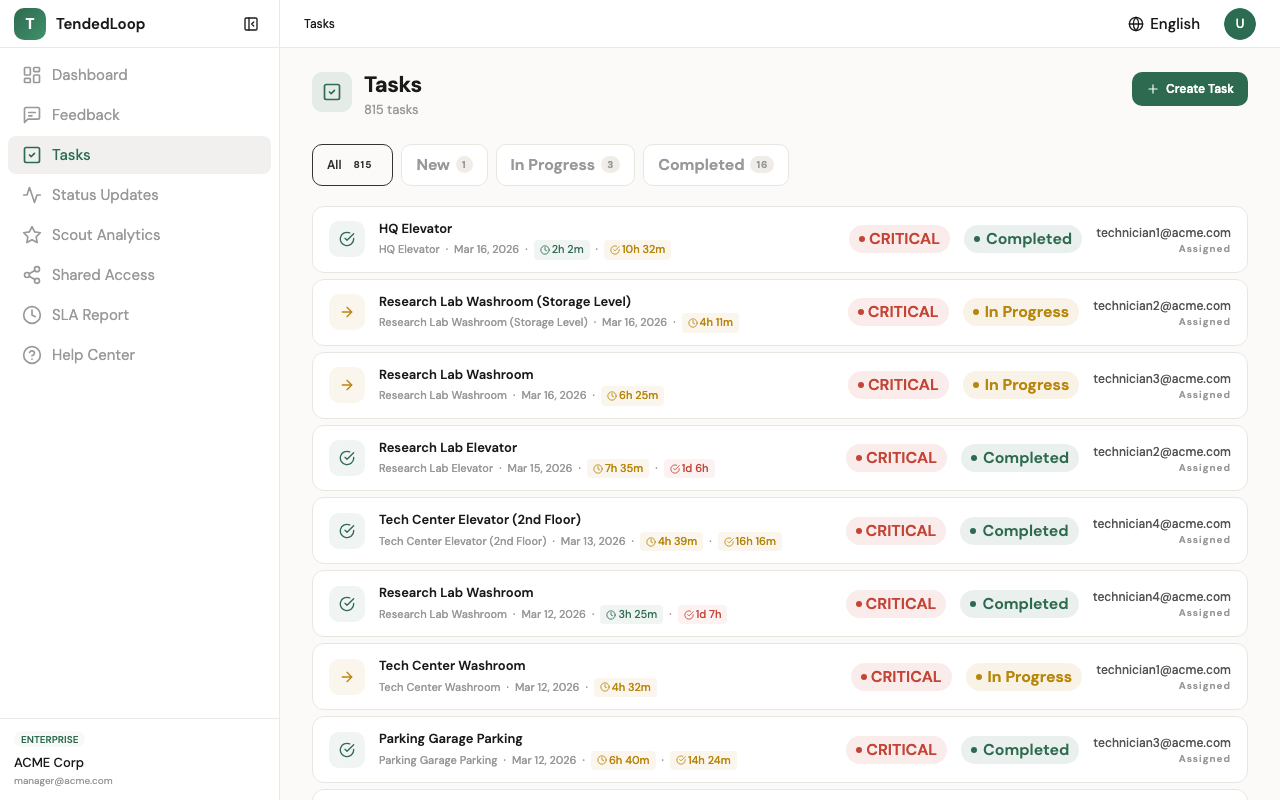
View, assign, and track maintenance tasks created from feedback. Filter by status, priority, or assignee.
Task List
The Tasks page shows all open and recent tasks. Each task displays the source feedback, assigned technician, priority level, and current status. Use filters to narrow by building, status, or assignee.
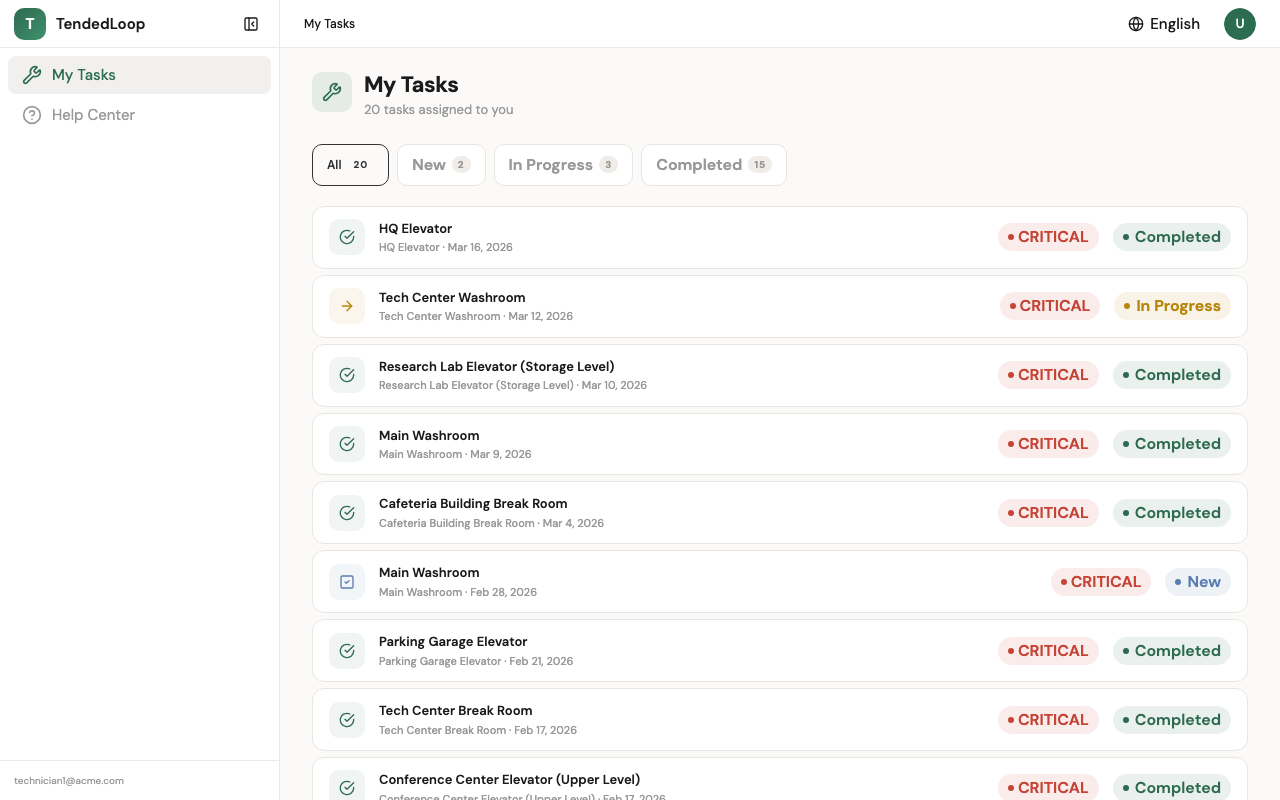
My Tasks View
Technicians see their personal task queue in the "My Tasks" view. Tasks are ordered by priority and due date. Tap a task to view details, update status, or add a note.
SLA Monitoring
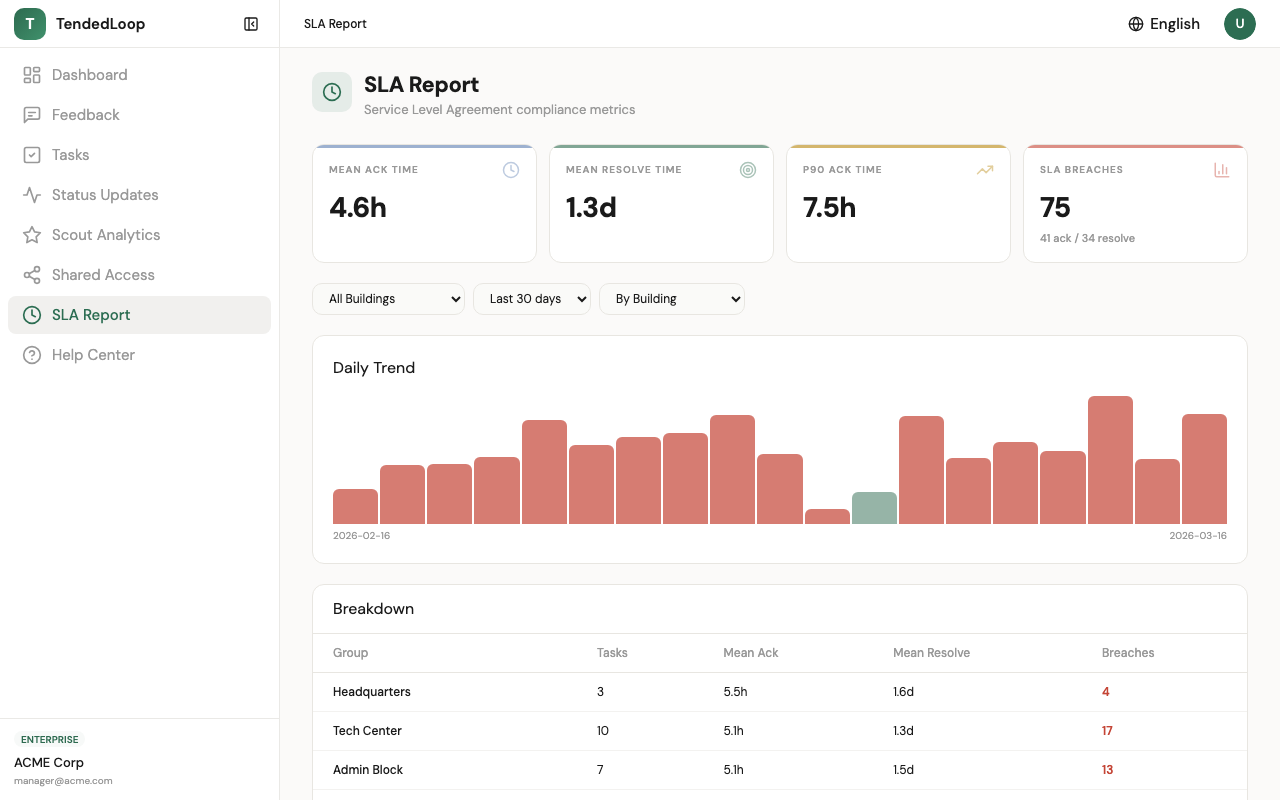
Track response and resolution times against your SLA targets. The SLA report highlights tasks at risk of breaching, so your team can prioritize accordingly.